
Start with Buzz for a free desktop interface, whisper.cpp for a scriptable local workflow, or Otter Basic for a limited cloud service. The right choice depends on whether you have an existing recording, need live meeting capture, or only want to dictate into a text box.
Those are different jobs. Before installing anything, decide what you need to hand off: a plain transcript, timed subtitles, or meeting notes with decisions and owners.
We make Anarlog. Product facts and limits below were checked against official documentation on September 22, 2026. Screenshots identify their environment and source; this is not an accuracy ranking across Windows hardware.
Choose a workflow, not just a free tier
| Tool | Best starting use | Processing | What “free” means |
|---|---|---|---|
| Buzz | Audio/video files through a desktop interface | Local engines available; check the chosen engine | Open-source application; external API usage is separate |
| whisper.cpp | Repeatable file transcription and scripts | Local model inference | Open-source engine; you supply compute and setup |
| Otter Basic | Trying a managed meeting/transcription workspace | Cloud | A recurring minute allowance plus separate conversation/import caps |
Local software avoids a vendor minute allowance for local inference, but it still uses disk space, CPU/GPU time, and electricity. Cloud software avoids model setup but requires you to accept its upload path and service limits.
Windows requirements and outputs
| Tool | Installation / platform evidence | Output relevant here |
|---|---|---|
| Buzz | Windows installer; AVX2-capable CPU per its FAQ. Exact minimum Windows version is not specified in the installation page | TXT, SRT, VTT |
| whisper.cpp | Windows x64 release binary used in our test; compiler/source route also available | TXT in the verified command below |
| Otter | Windows 10+ desktop client or web browser | Basic: TXT/MP3; Pro adds DOCX/PDF/SRT |
Sources: Buzz installation and FAQ; whisper.cpp releases; Otter desktop requirements and exports.
Buzz for a desktop file workflow
Buzz provides a graphical route from a recording to a transcript. Its project documentation lists Windows installation, several transcription backends, and TXT, SRT, and VTT exports.
Choose a local backend, download its model while online, and start with a short file. A bigger model is not automatically the right choice for a laptop you are also using for a video call. Verify that the app completes the job at an acceptable speed on your machine.
Check the export before processing a folder of recordings. TXT is useful for reading and editing. SRT or VTT is useful when another tool needs time-aligned segments. Do not assume a plain-text file preserves the timing information visible inside the app.
The file workflow we ran
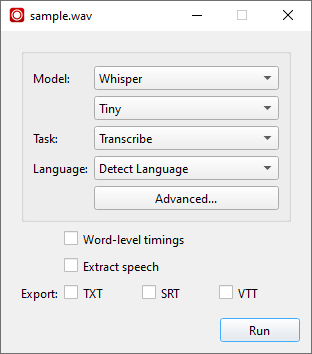
Our test used Buzz 1.4.5 on Windows Server 2022 Standard (build 20348), with a 75.55-second synthetic WAV and local Whisper Tiny. The VM had no audio endpoints, so we tested file import and export only. Live capture, a Windows 11 laptop, and network-disconnected operation were not tested.
- Install the Windows package from the project's official release/distribution link.
- Open File → Import Media File and select the WAV.
- Choose Whisper, Tiny, Transcribe, and Detect Language. Download the local model if prompted; do not select the OpenAI API backend for this local path.
- Select Run, then double-click the completed job to open the timestamped transcript.
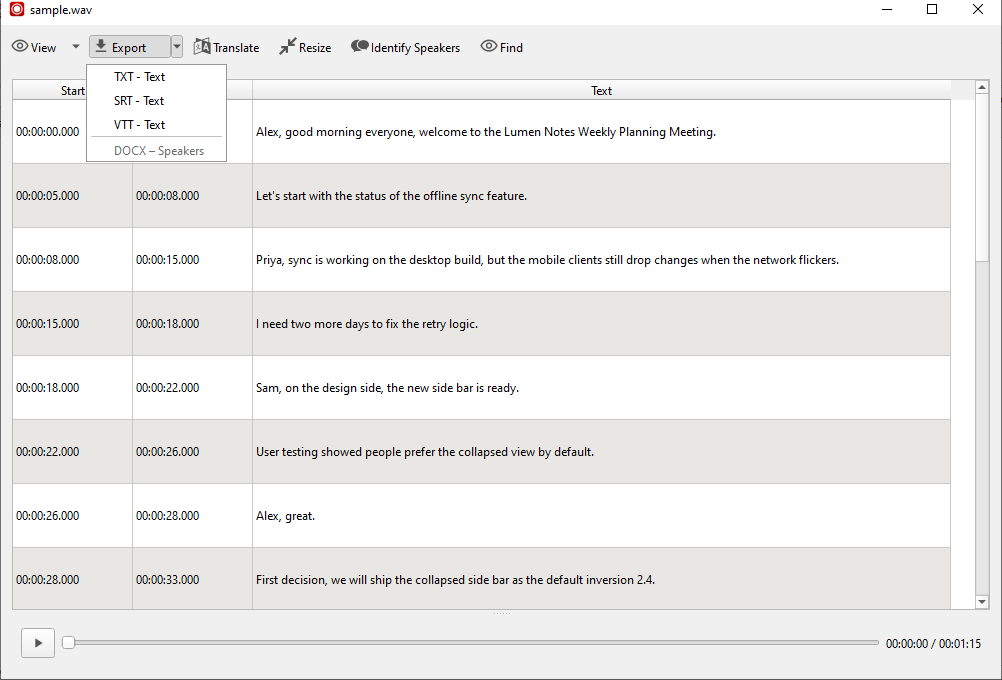
- Open Export, choose TXT, and save. Repeat with SRT if you need timed segments.
- Reopen both files. In our check,
sample-buzz.txtwas 1,105 bytes andsample-buzz.srtwas 1,894 bytes; both were read back from disk.
whisper.cpp for repeatable transcription
whisper.cpp is appropriate when you want a command-line engine and control over model files, input preparation, and output. Follow its current Windows build or release instructions rather than copying a Linux installation command into PowerShell.
The work is more explicit: obtain a compatible binary, prepare the audio format, download the model, run transcription, and inspect the output. That makes it useful for repeated jobs with the same settings. It also makes you responsible for distinguishing a missing dependency from an audio or model problem.
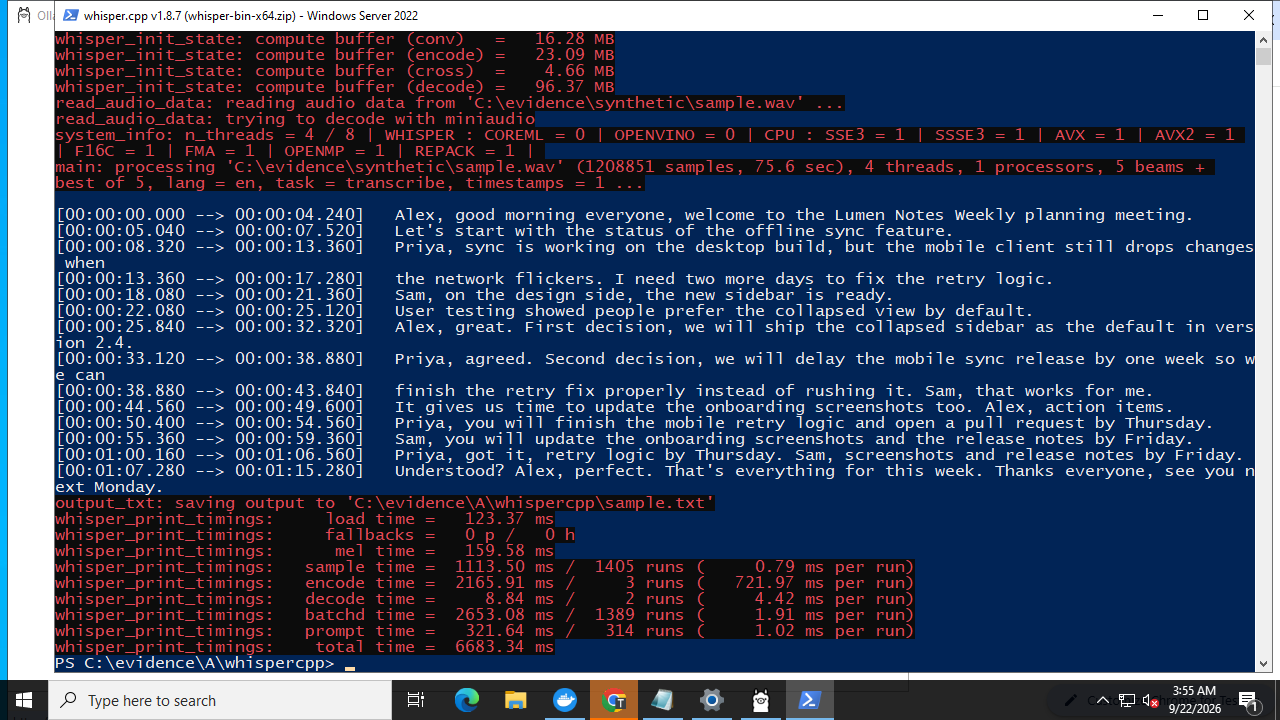
The verified Windows run used the x64 binary from whisper.cpp v1.8.7 and the official base.en model file. Keep the extracted archive's DLLs alongside the executable. Use a 16-bit PCM WAV; the pinned quick-start guide recommends 16 kHz mono input. Place the model and compatible test file named sample.wav in that folder, open PowerShell there, and run:
.\whisper-cli.exe -m .\ggml-base.en.bin -f .\sample.wav -otxt
Get-Content .\sample.wav.txt -TotalCount 5
The CPU run completed and wrote a transcript file. We used this pinned release for its Windows x64 archive; GPU acceleration and live capture were not tested.
Otter Basic when you prefer a cloud workspace
Otter is an alternative if avoiding local model setup matters more than offline processing. Its current pricing table lists 300 monthly transcription minutes, a 30-minute per-conversation limit, and three lifetime audio/video imports on Basic.
These limits work independently. A remaining monthly minute allowance does not restore a used-up lifetime import allowance. A one-hour recording is also not a good test of a tier with a shorter conversation cap.
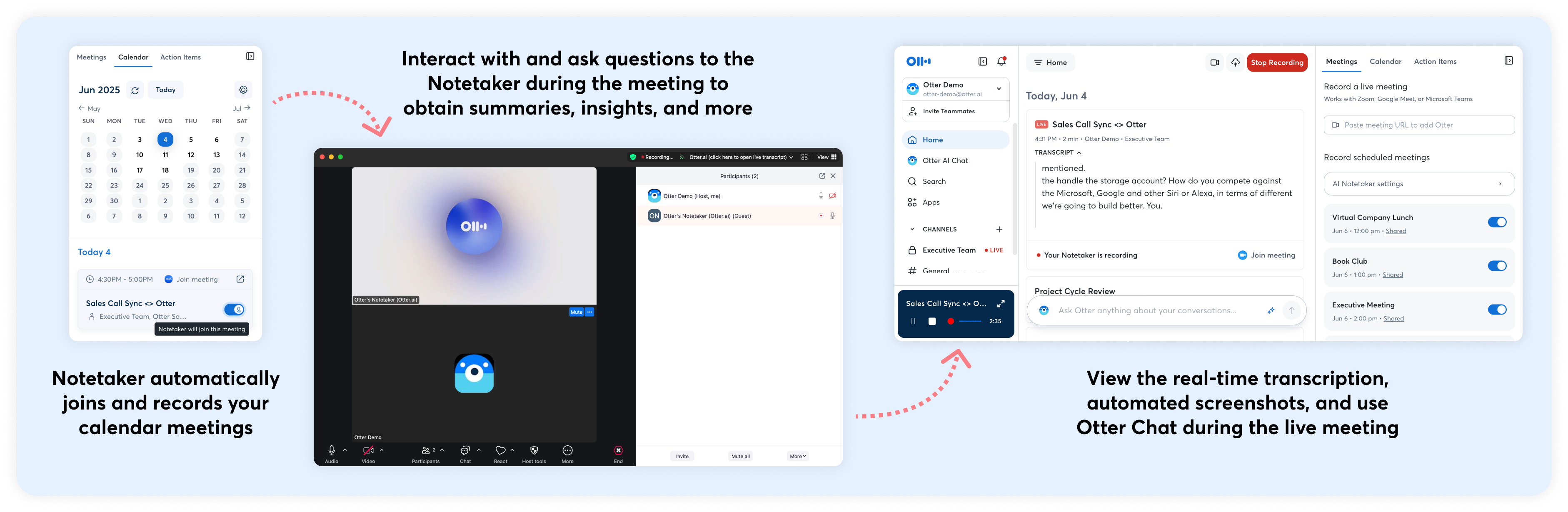
Otter provides a Windows desktop option as well as web workflows. Installing a desktop client does not turn the service into local inference. Review the data policy and intended share audience before uploading a work recording.
Source: Otter.
Run the same small test before committing
Start with a non-sensitive recording and a known reference text. Include a name, a date, a technical term, a decision, and a rejected idea. After the workflow succeeds, check accuracy with authorized audio from the kinds of meetings you actually hold.
| Record | Why it matters |
|---|---|
| Windows version, CPU, RAM, and GPU | Another machine may behave differently |
| Tool version, backend, and model | Results belong to this configuration |
| Audio format and duration | Conversion and processing time depend on input |
| Download/setup time separately from transcription | First-run setup can dominate the experience |
| Export format and successful reopen | A transcript is useful only if you can use it afterward |
| Errors in names, negation, numbers, and owners | These errors can change the meaning of meeting notes |
For an offline requirement, finish installation and model downloads, disconnect, and repeat the file job. Verify the whole path, including exports. A local recording button alone does not establish offline transcription.
Where Anarlog fits on Windows
Anarlog offers a Windows beta for a broader meeting-notes workflow. Its built-in Soniqo, Apple Speech, and on-device file transcription paths have Apple Silicon requirements; do not infer that those Mac features run in the Windows build. Check the current platform notes and configure a supported provider for Windows.
For free local file transcription, start with Buzz or whisper.cpp and verify the exported TXT or SRT. Our general free-transcription guide covers additional platforms and use cases.
If you need a meeting-notes workspace, review Anarlog's capture, notes, and provider choices first. Once those fit, choose a Windows build and test one sample with the transcription provider you intend to use.